Home / Docs / Website Chat / Photos and saved replies in Website Chat
Photos and saved replies in Website Chat
Photos and saved replies work the same way in website chat as in your texting inbox.
Overview: Website Chat docs
Photos
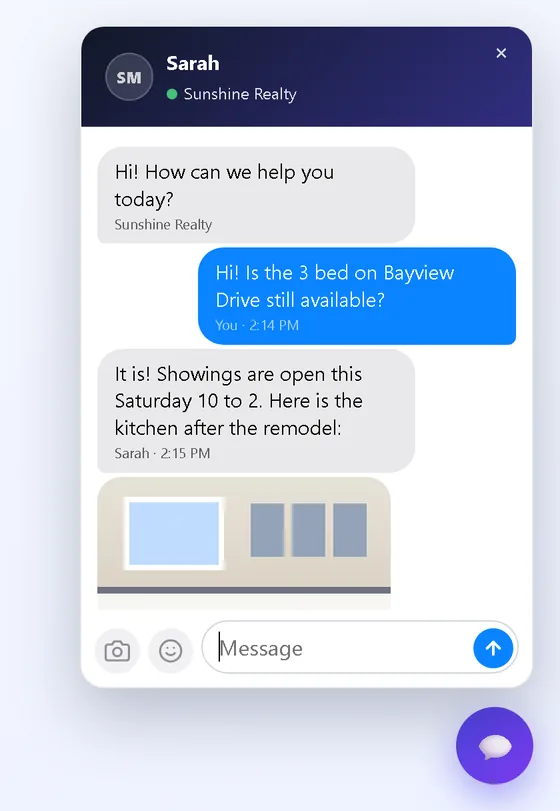
- Visitors tap the camera in the chat and pick a photo. Your team uses the camera button on Web chats.
- JPG, PNG, GIF or WebP, up to 8 MB each. Phone photos are almost always fine.
- Photos show in the chat with their file name and size. Tap one to see it full size.
- A visitor can send up to 10 photos an hour.
- No PDFs or other files in chat. For documents, use email or another channel. (You can still upload PDFs to the AI knowledge base for training; that is separate.)
Saved replies
Website chat uses the same saved replies as the texting inbox. Write a reply once and use it in both.
On Web chats:
- 📁 Saved replies opens the full list: search, add, edit and delete.
- ★ pins up to 8 favourites as one-tap buttons above your message box.
- ⚡ Quick insert searches as you type.
{name}becomes the visitor's first name.
Shortcuts
Give a saved reply a shortcut, like hours. Then type /hours in any message box, in Web chats or the inbox, and press Enter or Tab to drop it in. Type / alone to see the list. Each shortcut can be used once per account.
Starter replies for chat
- Greeting: "Hi {name}, thanks for reaching out. How can I help?"
- Photo request: "If you can, send a photo (under 8 MB). We cannot take PDFs in this chat."
- After hours: "We are away right now. Leave your number and we will call you first thing."