iPhone Setup
Add TelBuddy to your iPhone Home Screen
TelBuddy is a mobile web app, not an App Store download. On iPhone, Safari can pin it to your Home Screen so it opens full-screen with its own icon, using the same login as the desktop. About a minute, eight taps, no install package. Push notifications and offline mode are not included yet.
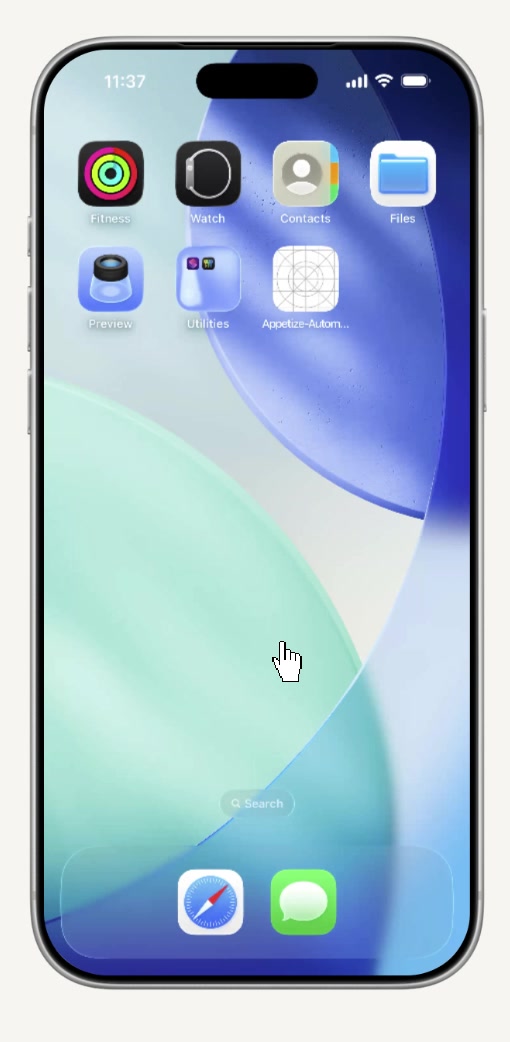
Start from your Home Screen, the same one you already have.
Prefer to watch? See the whole process in under 30 seconds.
Open Safari
This only works in Safari, not Chrome or another browser. It has to be Safari.
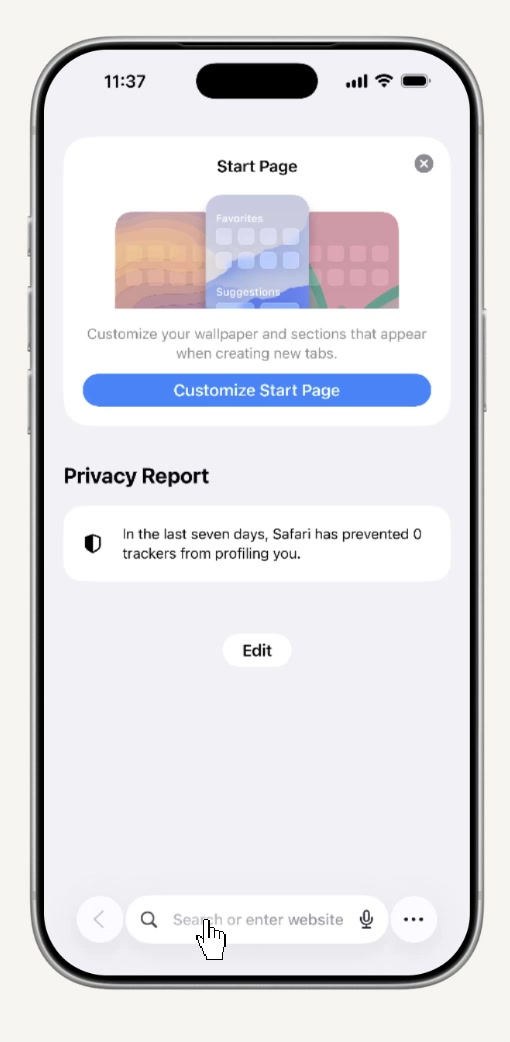
Go to telbuddy.com
Type telbuddy.com into the address bar and hit Go.
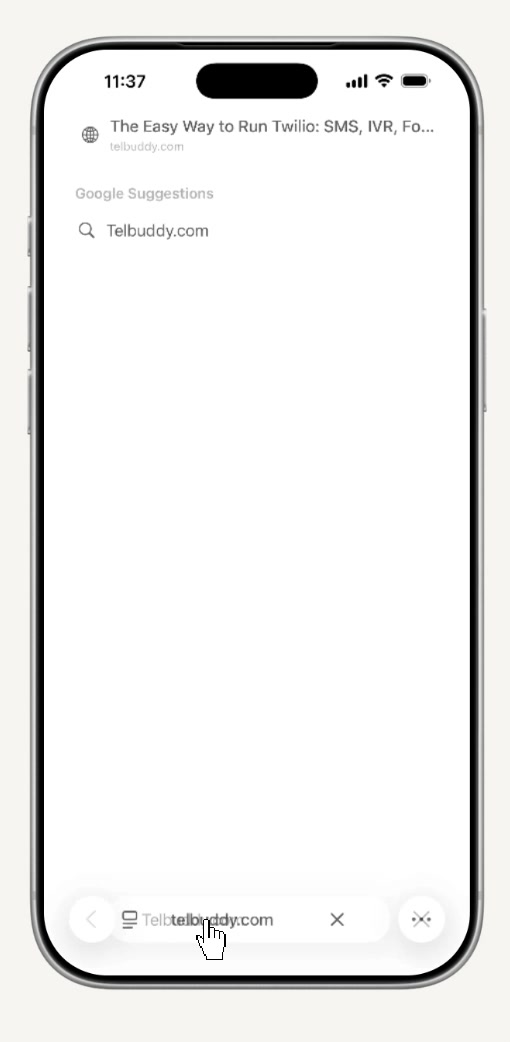
Tap Launch App
That takes you into the actual TelBuddy app (the login screen). This is the page you want your Home Screen icon to point to.
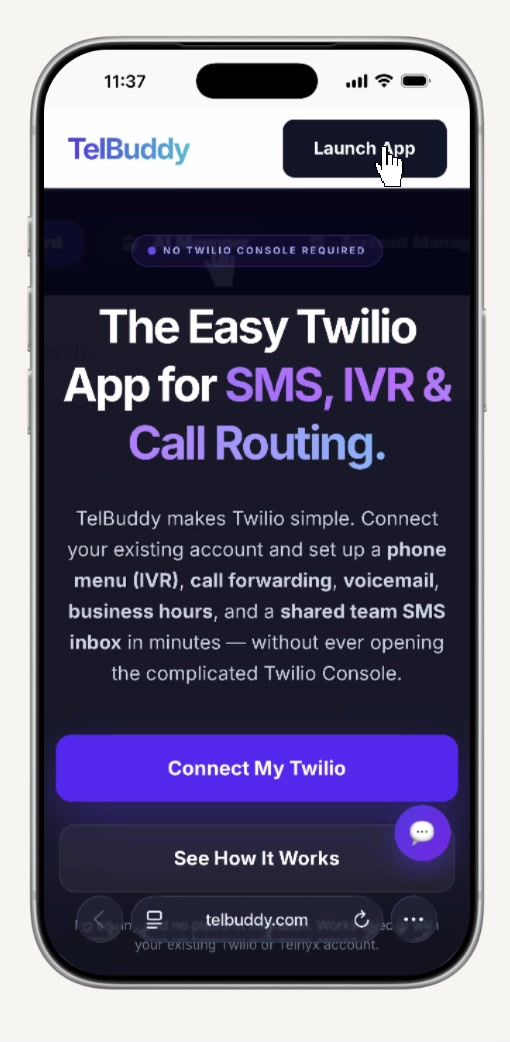
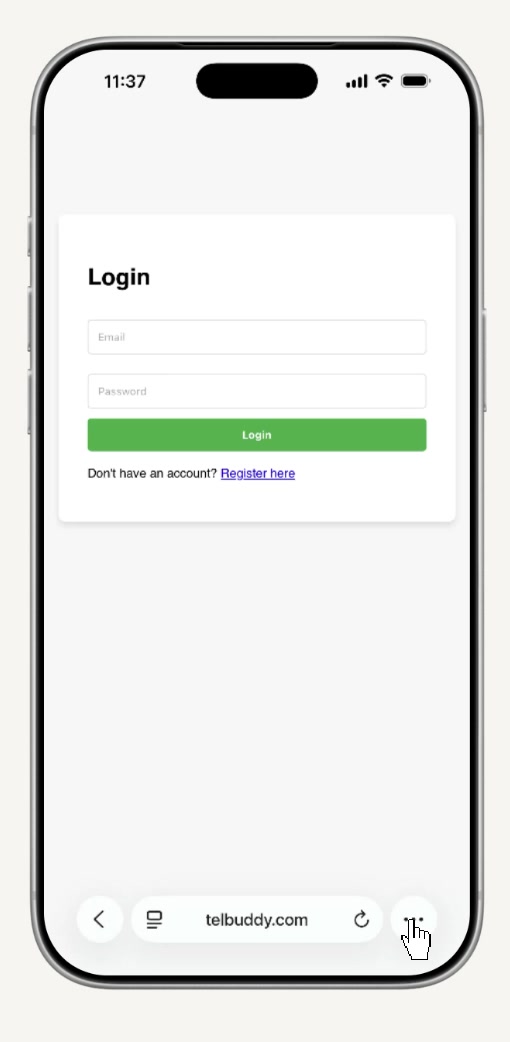
Tap the ••• menu
Down in Safari's bottom toolbar, tap the three dots.
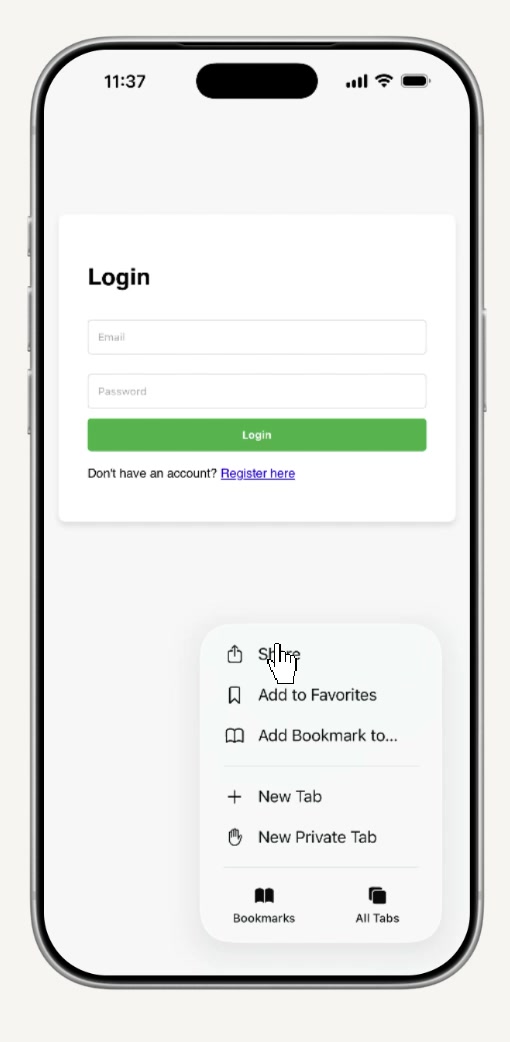
Tap Share
The Share icon opens the standard iOS share sheet.
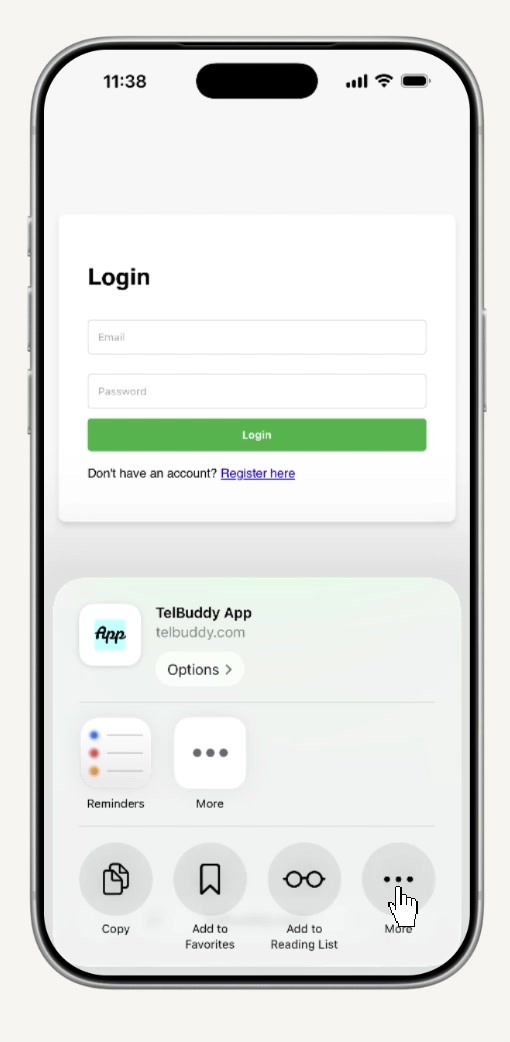
Tap More
If "Add to Home Screen" isn't in the first row, tap More to find it.
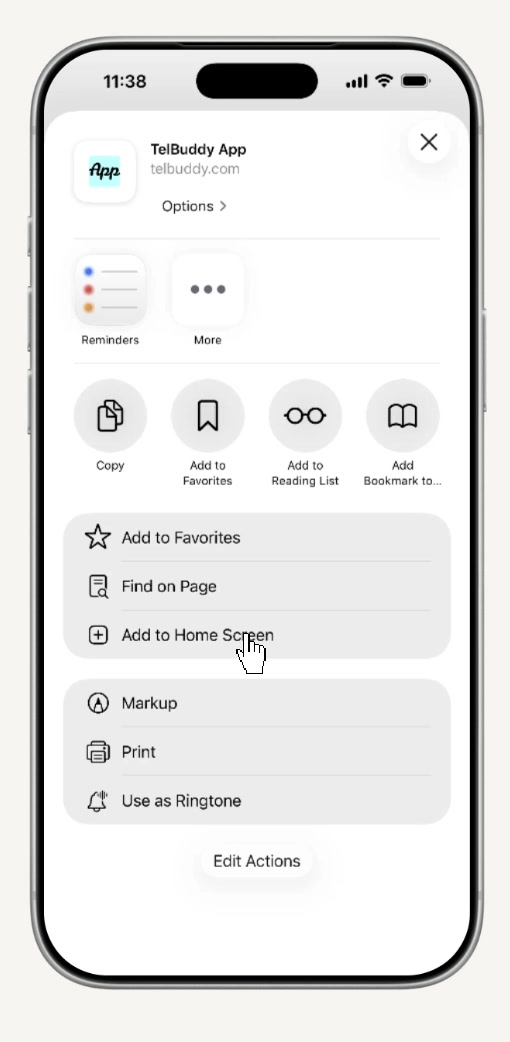
Tap Add to Home Screen
This is the option that actually creates the icon.
Tap Add
Confirm with the blue Add button in the top-right corner.
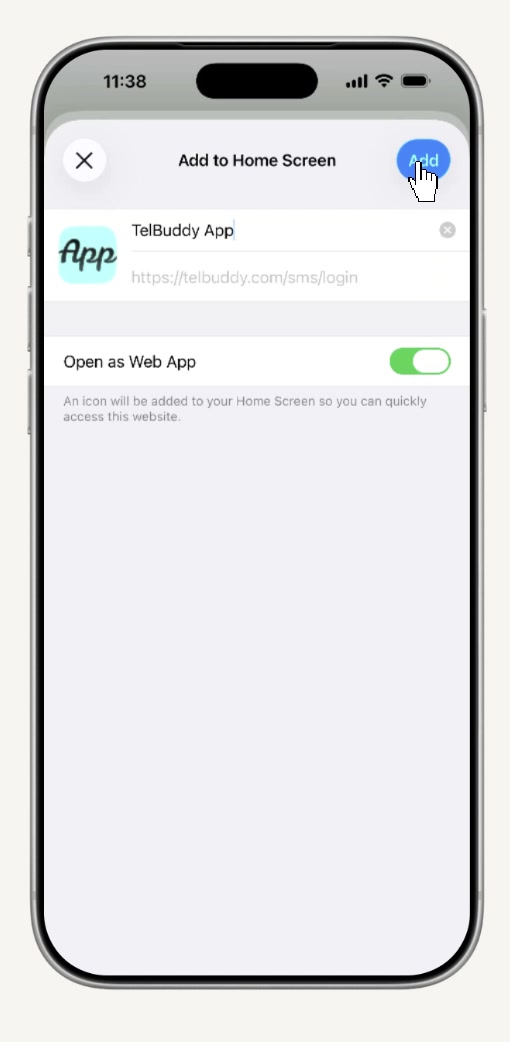
Done
That's It. You Have a TelBuddy App Now
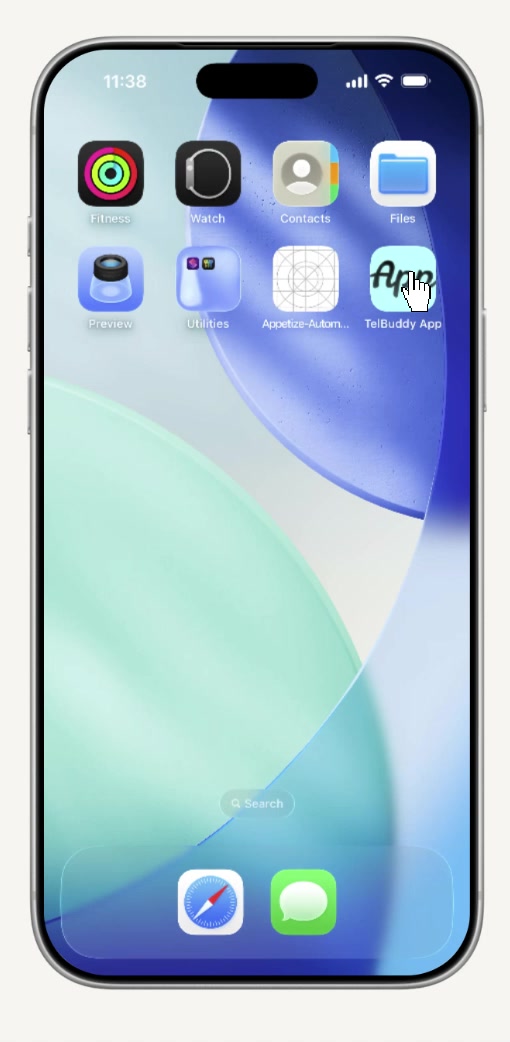
TelBuddy now sits right on your Home Screen with its own icon.
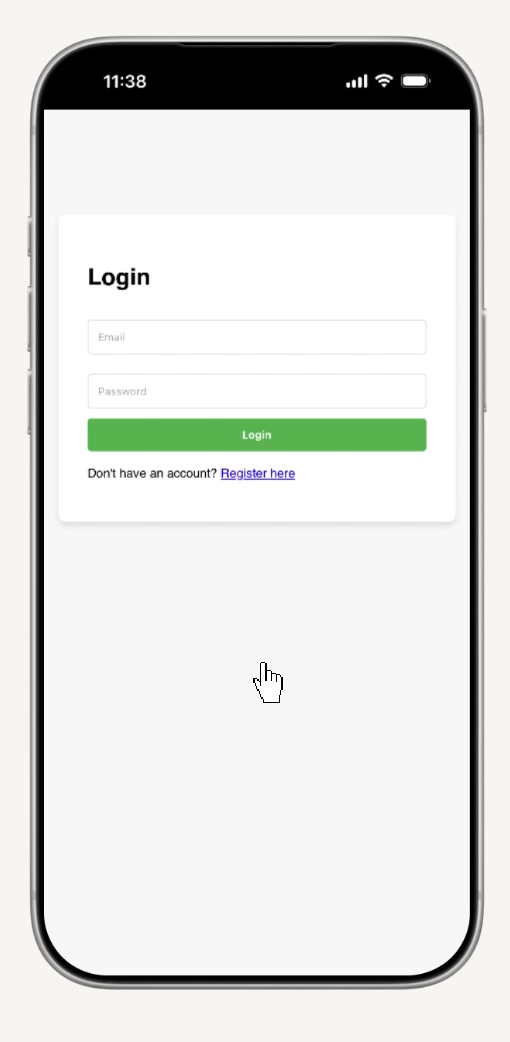
Tap it. TelBuddy opens full-screen. No address bar, no browser tabs, no Safari in sight.
Frequently Asked Questions
Do I need to download anything from the App Store?
No. TelBuddy isn't an App Store app. This creates a real Home Screen icon that opens TelBuddy full-screen, using the same account you already log into on the web.
Will I get push notifications like a real app?
Not yet. This Home Screen icon gives you one-tap, full-screen access, but it doesn't add push notifications or offline access. If that changes, this page will be the first to say so.
Does this work on Android?
Android has its own version of this. Chrome's menu has an "Add to Home screen" option too , but the exact steps differ from Safari's, so this specific walkthrough is written for iPhone.
Do I need to do this on every iPhone I use?
Yes. "Add to Home Screen" is per-device, not per-account. Repeat these steps on each iPhone or iPad you want a TelBuddy icon on.
New to TelBuddy?
See how it works, or connect your own Twilio or Telnyx account in about two minutes.