Book appointments on the call or by text
A missed call is often a missed booking. With the optional AI receptionist add-on, connect Google Calendar so the AI checks real availability, offers open times, and writes the appointment while the caller is still on the phone, or inside the text thread when they would rather text. One calendar for the business, or one per stylist, agent or room. It is not included in core plans or the free trial. Professional AI Appointment Setup is available if you want help configuring it.
You didn't start your business to play phone tag.
Someone calls. You're with a customer, on a job, or just not near the phone. They leave a voicemail, or they don't. Either way, you call back an hour later, and the moment (the one where they were ready to book) is gone. They've already called the next name on their list.
That moment is the whole business. So we built something to protect it: an AI receptionist that doesn't take a message about an appointment. It books the appointment. Right then. On the call, or in the text thread. Onto the calendar you already use.
Real Availability, Not a Guess
It checks your actual Google Calendar before it ever says a time out loud. If 2pm is taken, it won't offer 2pm. Simple as that.
Everything, In One Place
Name, number, and whatever else you need to know, right on the calendar event itself. No second app to open before you call someone back.
Your Calendars, Not New Ones
No separate scheduling tool to learn or pay for. Connect the Google Calendar you already check every day, or one per person on the team, and you're done.
Simple, by design.
You connect your calendar. You pick which one, from a list of your own. Nothing gets guessed or assumed on your behalf. From that moment, every call that comes in has a receptionist who can see exactly what's open, today, this week, this hour.
No scripts to write. No calendar sync software to configure. No "we'll call you back to confirm." The appointment is on the calendar before the caller even hangs up.
By text, the same booking.
Half the people who tap a number would rather text it. The same AI that answers your line can book from the shared inbox: it reads the thread, checks the calendar, offers times that are actually free, and confirms the exact date and time before it writes anything down. It knows today's date in your number's time zone, so "Thursday at 2" means the right Thursday.
Autopilot
The customer confirms a time in their own words, the AI books it on the calendar and replies that it is booked. Nobody on your team has to touch it.
Draft mode
The AI writes the same reply, telling the customer the time is booked, and holds it for you. The draft card in the inbox shows the appointment with a tick already on it. Click Book & Send and both happen at once: the event goes on the calendar (after a fresh free-or-busy check) and the text goes out. Untick to send without booking, or edit the reply first.
Draft mode is how most teams start. You watch the AI's wording for a week, then switch that number to Autopilot when you trust it. Either way the calendar is only ever written after a live availability check, so a slot taken between the offer and the confirmation is caught, not double-booked.
One calendar per person.
A salon with five stylists has five calendars, not one. Connect a Google account (or several) from the Appointments tab, add each person's calendar, and give it the name customers use: Maria, Jose, Front desk. From then on:
- • "Can I get in with Maria on Friday?" The AI checks Maria's calendar only, offers her free times, and books her.
- • "Anyone is fine." It checks everyone, offers the first open times with the name attached, books the first person free, and tells the customer who they are booked with.
- • Day off? Block it in your own Google Calendar. The AI reads real free and busy time, so a blocked day is never offered. Nothing to set in TelBuddy.
- • Which AI books where is a tick box on each calendar. Leave them all unticked and every receptionist may book anywhere; tick two stylists on the "color department" line's AI and it books only those two.
- • Who sees what. Appointment Logs show the calendar on every row and filter by it. An admin can limit a team member to their own calendar, so a stylist sees only their own bookings and can only approve bookings on their own diary.
It works the same on a call and by text, and it is the same booking whether the calendar belongs to a stylist, a listing agent, a treatment room or a service bay. One calendar is still the default: connect one and nothing here needs a second thought.
See It In TelBuddy
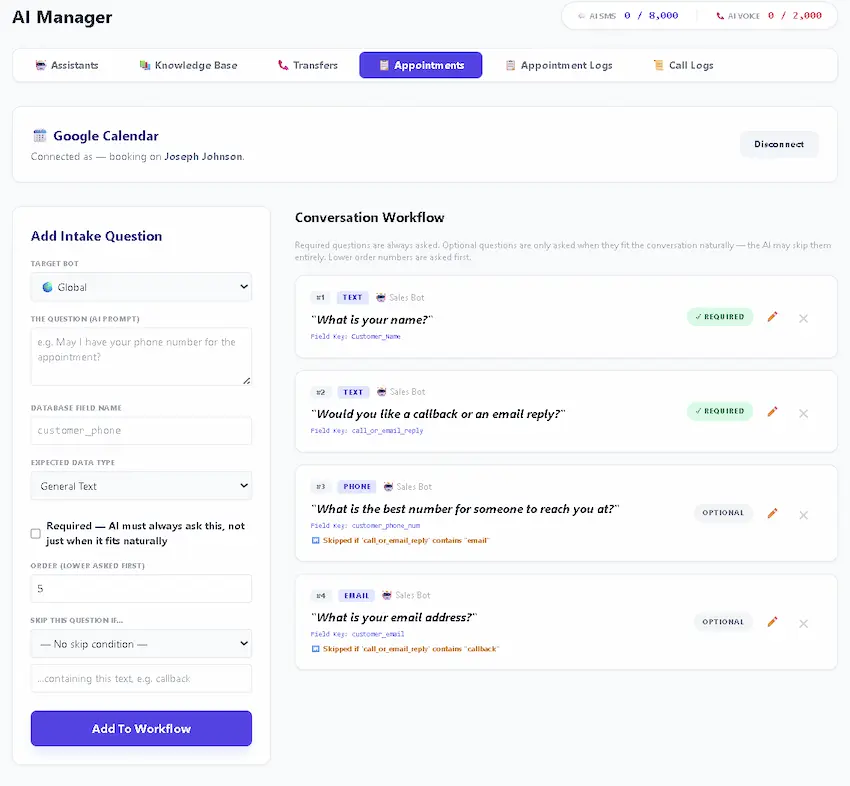
The real Appointments tab, not a mockup.
What it needs to know before it can book correctly, including buffers and when to hand off to a human.
Booking works differently by trade. See it for real estate showings, legal consultations, medical visits, dealership service, or B2B discovery calls.
A few honest answers.
Does the AI actually check my real calendar, or just guess?
It checks your real, connected Google Calendar in real time before ever offering a caller a time. If a slot is taken, it won't offer it.
Do I need a separate scheduling tool?
No. It uses the calendar you already have. Connect it once, and every appointment your AI books appears there automatically.
What does the calendar event actually show?
The caller's name and phone number, the time, and everything else captured during the call, so you can call someone back without opening a second app.
Is this included in my plan, or a separate cost?
It's part of the optional AI add-on, available on any TelBuddy plan. If you'd rather have it professionally configured for you, that's available too.
Can it book appointments by text as well as on a call?
Yes. Turn on Book appointments by text for the AI on that number. In Autopilot it checks the calendar and books once the customer confirms an exact date and time. In Draft mode it writes the reply as booked and your team approves the booking and the text together, in one click, from the inbox.
We have five stylists with five calendars. Can it book the right one?
Yes. Connect one Google account or several, add each person's calendar, and give it the name customers use. Ask for Maria and it books Maria. Say anyone and it checks everyone, offers the first free times, and tells the customer who they are booked with. You choose which AI receptionists may book on each calendar.
How does someone take a day off?
Block it in their own Google Calendar. The AI reads real free and busy time, so a blocked day is simply never offered. There is nothing to set in TelBuddy.