Home / Docs / Website Chat / Web chat Settings on the Web chats page
Web chat Settings on the Web chats page
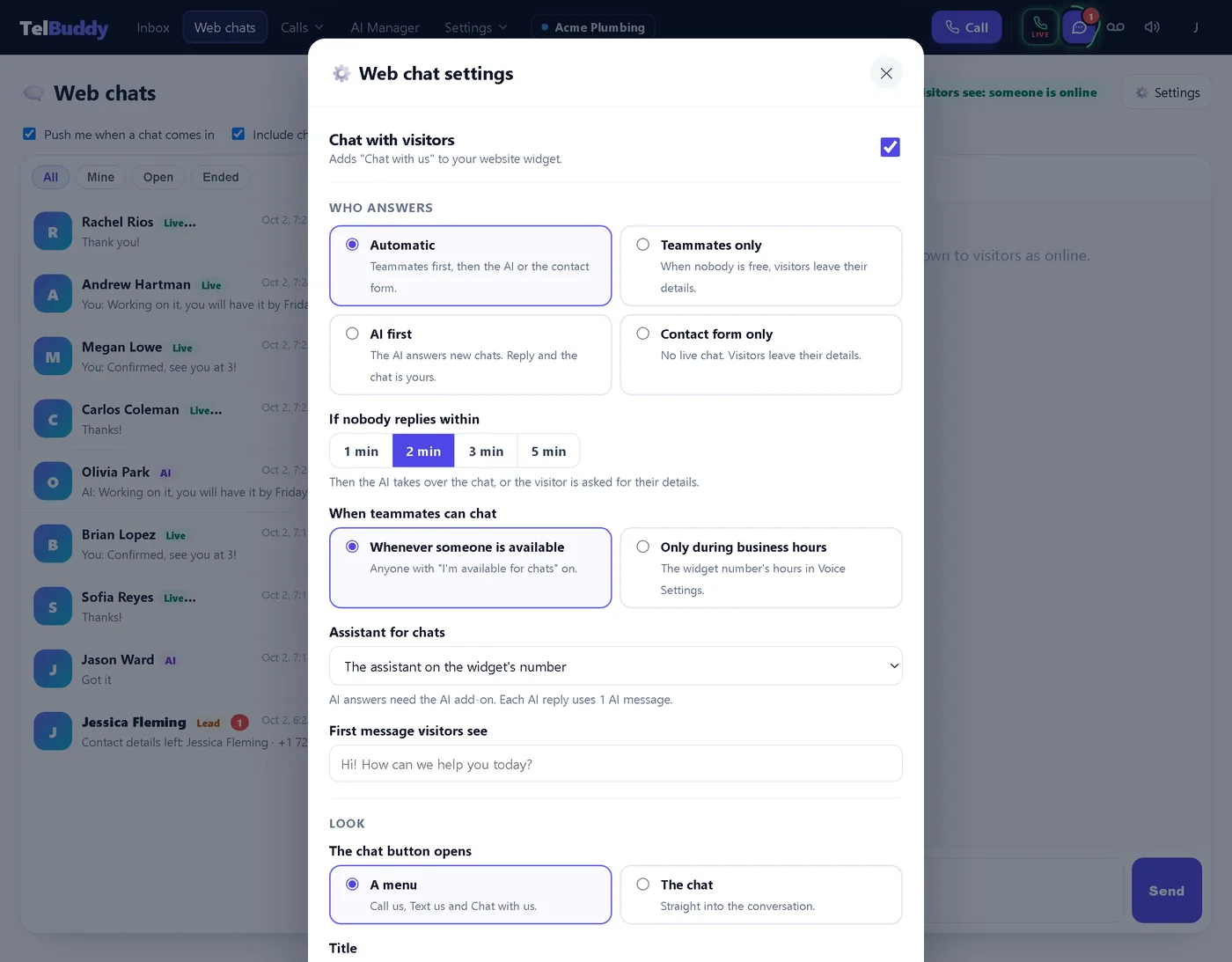
Once Website Chat is installed, the day-to-day options live in a Settings pop-up on the Web chats page. You do not need to open System Manager to change who answers, the wait, the hours, the assistant, the greeting, the look or the contact form.
The install code, allowed websites and site key stay in System Manager > Widgets, and only admins can change them.
Overview: Website Chat docs · Install first: Install the widget
Who can open Settings
| Who | What they see |
|---|---|
| Admin | Always sees Settings on Web chats, and can save. |
| Agent | Does not see Settings unless an admin grants Web chat settings. |
To grant it, open System Manager > Team, open the teammate, and set Web chat settings under "What they can open":
- Hidden (the default): no Settings button.
- View: they can open Settings and read it, but not save.
- Full: they can open Settings and save.
Even with Full, the install code, allowed websites and site key are not in this pop-up. Those stay with admins.
Open the pop-up
- Open Web chats in TelBuddy.
- Click Settings at the top of the page.
- Change what you need and click Save settings.
Visitors see the changes on their next page load. You do not need to paste the install code again.
If website chat is switched off, the yellow note at the top of Web chats has a Turn it on in Settings link for anyone who can save.
What you can change
Chat with visitors
Switches "Chat with us" on or off in your website widget. When it is off, visitors only see Call Us and Text Us, and the rest of the pop-up is hidden.
Who answers
- Automatic: teammates first. When nobody is available, the AI answers (with the AI add-on), otherwise the contact form.
- Teammates only: only people answer. When nobody is free, visitors leave their details.
- AI first: the AI answers every new chat. Reply from Web chats and the chat is yours.
- Contact form only: no live chat. Visitors leave their details.
More detail: Who answers: live, AI or contact form.
If nobody replies within
1, 2, 3 or 5 minutes. When the time runs out, the AI takes over the same chat, or the visitor is asked for their details. See When nobody answers.
When teammates can chat
- Whenever someone is available: anyone with I'm available for chats switched on can answer.
- Only during business hours: uses the hours of the widget's number in Voice Settings.
Assistant for chats
Which AI assistant answers website chats. Leave it on The assistant on the widget's number to use the same one as your phone line. AI answers need the optional AI add-on, and each AI reply uses one AI message. See pricing for the AI tiers.
First message visitors see
The greeting at the top of a new chat. Short and friendly works best.
Look
- The chat button opens: a menu (Call us, Text us and Chat with us) or straight into the chat.
- Title: shown at the top of the chat. Leave it empty to show your business name.
- Color: pick a swatch, choose your own, or click Default for the TelBuddy look. Very light colors are refused, because white text on them is hard to read.
- Logo: optional. A square image under 1 MB works best.
Contact form
Which details visitors must give when nobody can chat: phone or email, phone, email, or both. Leads appear on Web chats and are emailed to your alert list.
What stays in System Manager > Widgets
| Setting | Where |
|---|---|
| Install code | System Manager > Widgets |
| Phone number and corner | System Manager > Widgets |
| Allowed websites and "Only these websites" | System Manager > Widgets (Security) |
| Site key | System Manager > Widgets |
Saving from the pop-up never changes these.
Good to know
- Website chats are answered on the Web chats page, not in the texting inbox.
- Emailing a visitor a copy of a chat only goes to an address the visitor gave you. See End, transfer and email a copy.
- Live chat and the contact form work on every plan. Only AI answers need the AI add-on.
- Website Chat runs on your own Twilio or Telnyx account. Chat itself does not use carrier minutes or texts.
Quick check after you change Settings
- Open your website in a private window and open the chat.
- Check the look, and that the right person, the AI or the contact form answers.
- If the AI answers, ask it a question your knowledge base covers.
- Make sure a teammate with I'm available for chats on sees the test chat on Web chats.