Home / Docs / AI Features / Teaching Your AI With a Knowledge Base
Teaching Your AI With a Knowledge Base
By default, an AI has no specific knowledge of your business. It can hold a conversation, but it has nothing real to say about your actual services, pricing, hours, or policies unless you give it something to work from. A knowledge base is exactly that: your own content, connected so the AI can answer from it.
Three ways to add content. Paste text directly, point at a webpage URL, or upload a file. All three end up in the same place, and you can mix them freely.
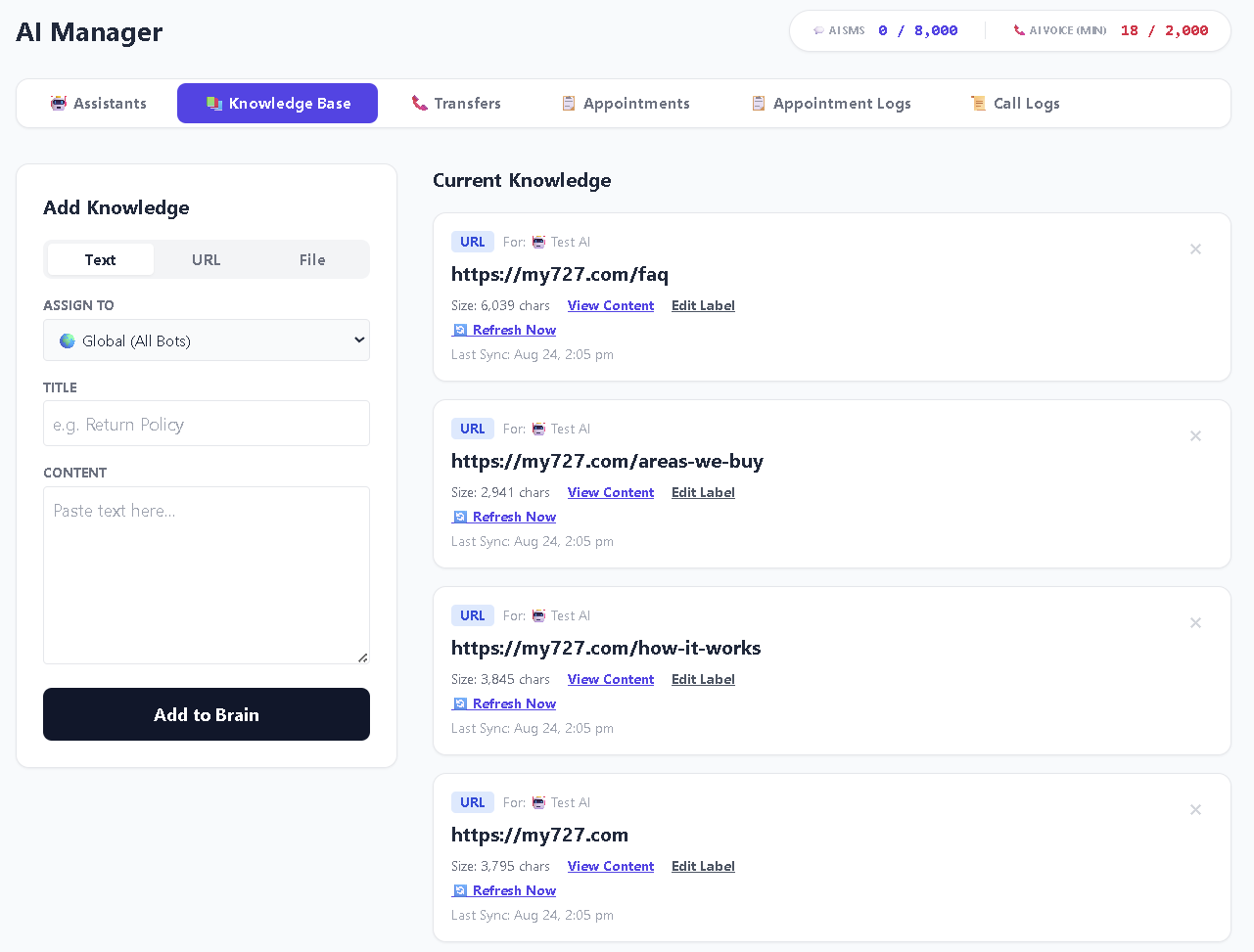
Webpages stay current on their own. A URL source is re-fetched automatically about once a day, so when you update the page on your website, the AI picks up the change without you touching anything. There is also a Refresh Now button when you cannot wait, and every entry shows a Last Sync timestamp so you always know how current it is.
The AI looks things up rather than memorising everything. Your content is broken into small pieces and indexed so it can be searched by meaning, not just by matching words. When a caller or texter asks something factual, the AI searches that index and answers from what comes back. This is what keeps replies fast: it only pays the cost of a lookup when it actually needs a fact, so small talk stays instant.
Shared across both AI channels. The same knowledge base serves AI SMS and the AI Voice Receptionist, so you are not maintaining two sets of content for text versus voice.
Global or per-assistant. Each entry is either Global (every assistant can use it) or assigned to one specific assistant. That is how a sales line and a support line can know different things.
Features at a glance
- Three source types: pasted text, a webpage URL, or an uploaded file
- URL sources re-fetch automatically about once a day, with a manual Refresh Now option
- Every entry shows its size and when it last synced
- Searched by meaning, not exact keywords, so callers do not need your exact wording
- One knowledge base powers both AI SMS and the AI Voice Receptionist
- Entries can be global or scoped to a single assistant
- Lives under the Knowledge Base tab in AI Console
The single most important thing to understand
A knowledge base is the difference between an AI that sounds good and one that is useful.
Without one, the AI is fluent, confident, and knows nothing about you. It will still hold a pleasant conversation and still sound professional. But when a caller asks what you charge, it has no way to know.
This is the most common reason people are disappointed with an AI receptionist, and it is almost never a settings problem or a model problem. It is a content problem. If the AI does not know your prices, no amount of adjusting its personality will help.
There is one genuinely reassuring detail here: if you have added no knowledge at all, the AI is not even offered the ability to look things up. It cannot promise a caller it will check something and then invent an answer, because the lookup does not exist for it. That is deliberate. But it also means an AI with an empty knowledge base can only ever say it does not have that information.
Adding your first content
-
Open AI Console and go to the Knowledge Base tab
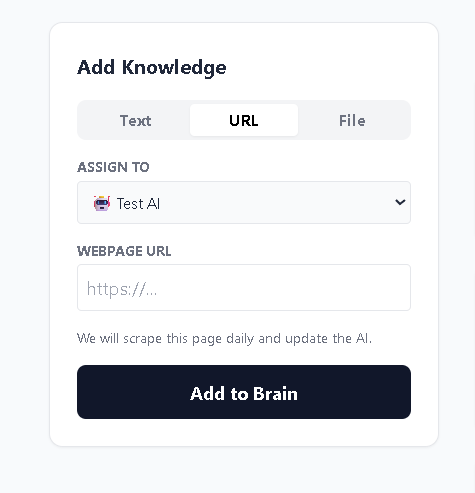
From AI Console, choose Knowledge Base. The form on the left adds content; the list on the right shows what is already there.
-
Pick a source type
Three buttons at the top of the form:
- Text: a title plus content you paste in. Best for things that exist only in your head, or that are not published anywhere.
- URL: a webpage address. Best for anything already on your website, because it keeps itself up to date.
- File: an upload. Accepted formats are
.txt,.csv,.json, and.md.
PDF and Word documents are not accepted as uploads. If your content lives in one, copy the text out and paste it in as a Text entry instead. It takes a moment and works exactly as well.
-
Choose who it applies to
Assign To is either Global (All Bots) or one specific assistant. Global is right for almost everything. Scope an entry to one assistant only when another assistant genuinely should not know it.
-
Give it a clear title and add it
Titles like Return Policy or Service Area are for your benefit when managing the list later, so make them descriptive.
Screenshot 2: the Add Knowledge form The form with the Text/URL/File selector, Assign To, Title, and Content filled in.
-
Check it indexed, then test it
The entry appears in the list with its size in characters and a View Content link so you can confirm what was actually captured, which matters most for URL sources. Then go ask the AI about it.
What to add first
Start with the questions your team actually answers most often. That is usually a short list, and covering it well beats covering everything badly.
The highest-value content, roughly in order:
- Pricing, or however you explain cost when it varies. This is what callers ask about most.
- Services: what you do, and specifically what you do not do. Both halves matter, since knowing what to decline is as useful as knowing what to offer.
- Hours and location, including anything unusual: seasonal changes, holiday closures, parking or entrance details.
- Policies callers ask about: cancellations, deposits, guarantees, turnaround times.
- Availability and booking, how appointments work and what a caller should expect.
- The awkward questions. Every business has three or four questions staff dread. Those are exactly where a knowledge base earns its keep.
Writing content the AI can use well
You are mostly reusing material you already have. But a few things genuinely improve results, and they follow directly from how the search works.
Keep each topic self-contained. Content is split into small chunks and only the few most relevant ones are pulled in to answer any given question. A section that makes sense on its own gets used correctly. One that depends on the three paragraphs above it may arrive without them.
Answer questions directly. Phrasing that mirrors how a customer asks ("How much does a callout cost?") matches better than a heading like "Our Pricing Philosophy."
Be specific. "Callouts start at $89" is usable. "Competitive rates" is not, and produces exactly the vague answer you were trying to avoid.
Say what you do not do. "We do not service commercial properties" stops the AI cheerfully agreeing to something you cannot deliver, which is worse than saying no.
Skip the marketing voice. Copy written to persuade tends to be thin on facts. The AI needs facts.
Split very different topics into separate entries. One enormous entry covering pricing, hours, and policies works, but several focused entries retrieve more precisely.
Search is by meaning, not keywords, so a caller asking "do you come out to Springfield?" can match content about your service area even without the words matching. That said, content that never mentions your service area at all cannot match anything.
Keeping it current
URL entries look after themselves. They are re-fetched about once a day. Update the page on your site and the AI follows along.
Refresh Now queues an immediate re-fetch. Useful right after you have changed a page. It is queued rather than instant, so the entry may briefly show as pending before the new Last Sync time appears.
Text and file entries do not update themselves. Anything you pasted or uploaded stays exactly as it was until you change it. Prices and hours are the two that actually matter here, so update those on the same day the underlying thing changes.
Watch the Last Sync column. It is the quickest way to spot an entry that has quietly stopped updating.
Remove what is no longer true. Old content does not retire on its own; it keeps getting retrieved and stated with full confidence.
Stale content is worse than missing content. The AI cannot tell that last year's price is last year's price, and it will quote it exactly as confidently as a current one.
Testing whether it worked
Adding content is not the same as the AI using it well. The only reliable check is to ask.
-
Ask the questions you added content for
Directly, the way a customer would. You are checking that the answer is specific and correct, not just that it sounds confident.
-
Ask something you deliberately did NOT cover
The more important test. There is a relevance floor on the search: if nothing is a good enough match, the lookup returns nothing at all rather than handing over a loosely related chunk. The AI should say it does not have that information.
If a caller needs a real answer at that point, that is what transfer rules are for.
-
Ask the same thing several ways
"What are your hours?", "Are you open Sunday?", and "Can I come by tomorrow evening?" are one underlying question. Real callers use all three. If only the first works, the content is phrased too narrowly.
-
Test on both channels
Once by text and once by call. They share the same knowledge base, but voice pulls fewer pieces of content per lookup than SMS does, to keep the call moving. Content that only works when a lot of it is retrieved at once will show the difference here.
Reviewing it over time
Review after a batch of real conversations. Gaps show up as questions the AI handled badly, and that list is far more useful than guessing what to add next.
Watch what people actually ask. Real callers surface questions you never anticipated, and those are usually the highest-value additions.
If you run AI SMS in Draft Mode and find yourself editing nearly every draft before sending, that is a knowledge base gap. The drafts are telling you exactly what content is missing, which is one of the better reasons to start in Draft Mode.
How it relates to everything else
The knowledge base is what the AI knows. Two other things shape how it behaves:
- Personality and instructions, set on each assistant, control how it speaks: tone, brevity, whether it always offers to book.
- Transfer rules control when it stops and hands to a human.
The three work together. A strong knowledge base with no transfer rules produces an AI that tries to handle everything, including conversations it should not be having. Good transfer rules with no knowledge base produce an AI that transfers constantly because it cannot answer anything. You need both.
Troubleshooting
The AI says it does not have that information, but I added it. Check the entry with View Content first. For URL sources especially, what was captured may not be what you see on the page. If the content is there, the question may be phrased too far from how the content reads.
A URL entry has an old Last Sync. Use Refresh Now. If it keeps failing, the page may be blocking automated fetches, in which case paste the text in as a Text entry instead.
My PDF will not upload. Only .txt, .csv, .json, and .md are accepted. Copy the text out and paste it in as a Text entry.
One assistant knows something another does not. Check the Assign To on that entry. Entries scoped to a single assistant are invisible to the others. Set it to Global if everyone should have it.
The AI gets details right sometimes and not others. Usually a chunking effect: the fact lives in a section that only makes sense alongside its neighbours. Rewriting that part so it stands alone generally fixes it.