Home / Docs / Getting Started / Adding TelBuddy to Your iPhone
Adding TelBuddy to Your iPhone
TelBuddy can live on your iPhone Home Screen as its own icon, launching full-screen with no visible Safari address bar and no App Store listing to install from, useful if you or your team check the inbox and dialer frequently and don't want to open a browser and type in the URL every time.
This is the TelBuddy WebApp on iOS.
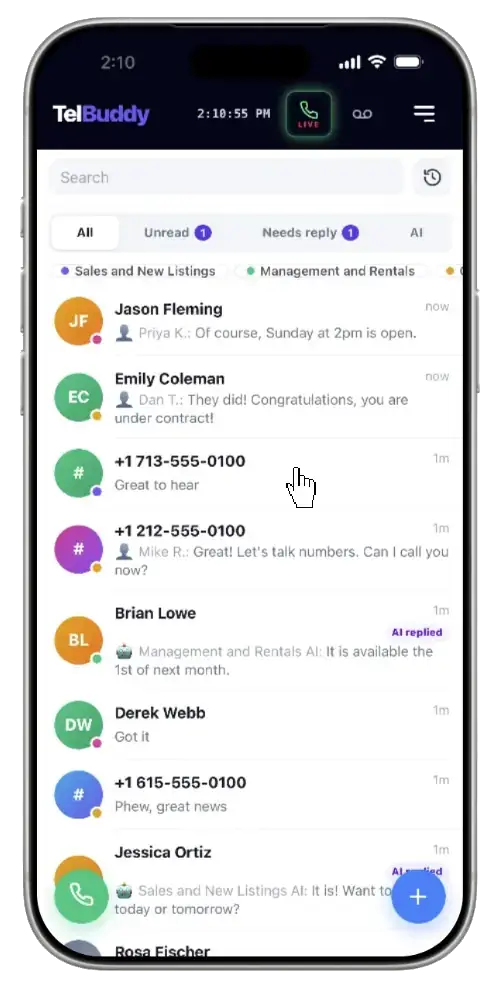
▶ Watch a 10-minute build: AI receptionist, phone menu and call queue on YouTube
Being accurate about what this actually is. This is a genuine WebApp launch shortcut, no browser bar and no visible tabs, but it is not a native app and it has no offline mode. Opening it still needs a live internet connection, the same as opening it in a browser tab. The difference is in how it looks and launches, not in what works when you have no signal.
Push notifications do work, and only this way. TelBuddy supports push notifications for incoming messages, and on iPhone they are only available once the app has been added to your Home Screen. That is an Apple restriction rather than ours. If you want to be notified about incoming texts on an iPhone, adding to the Home Screen is not just convenient, it is the requirement.
Features at a glance
- Full-screen Home Screen icon, no Safari address bar visible
- No App Store download required: added directly from Safari
- Genuine one-tap launch, same as any installed app
- Opens straight into your inbox
- Push notifications for incoming messages, available on iPhone only once installed this way
- Not a true offline app: requires an internet connection like the browser version
Adding it, step by step
-
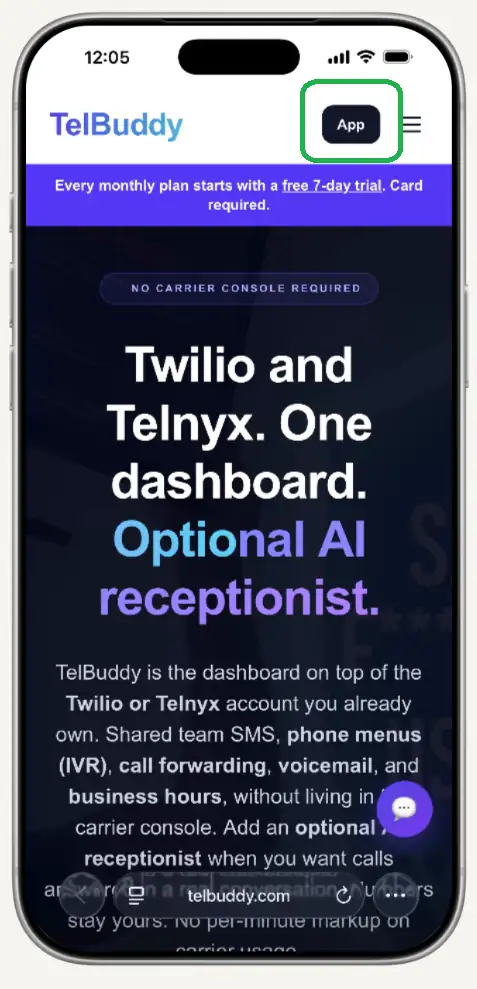
Open TelBuddy in Safari and click App
It has to be Safari on iPhone. Do not use Chrome, Firefox, and Edge on iOS as they do not produce a full-screen Home Screen app the way Safari does.
-
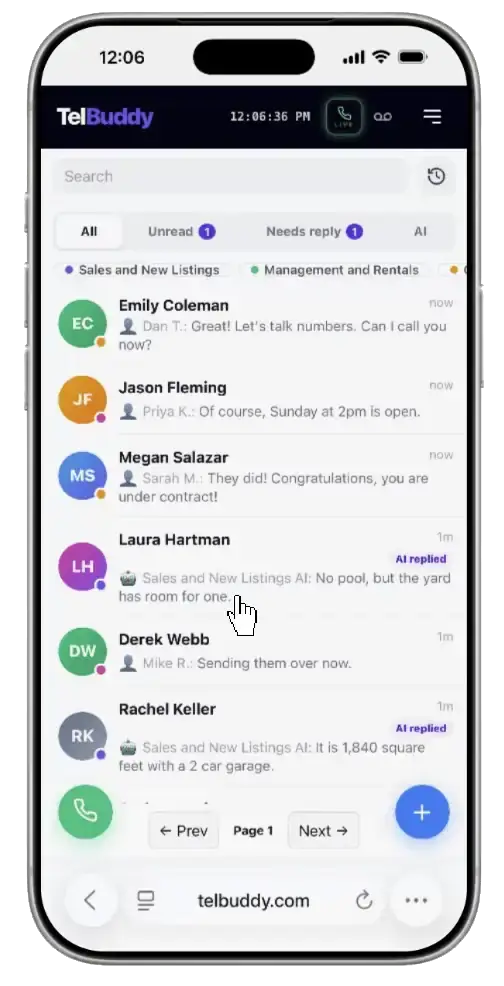
Get to your inbox
Sign in and let the inbox load. Adding from here is what gives the shortcut its app identity and makes it open to the right place.
-
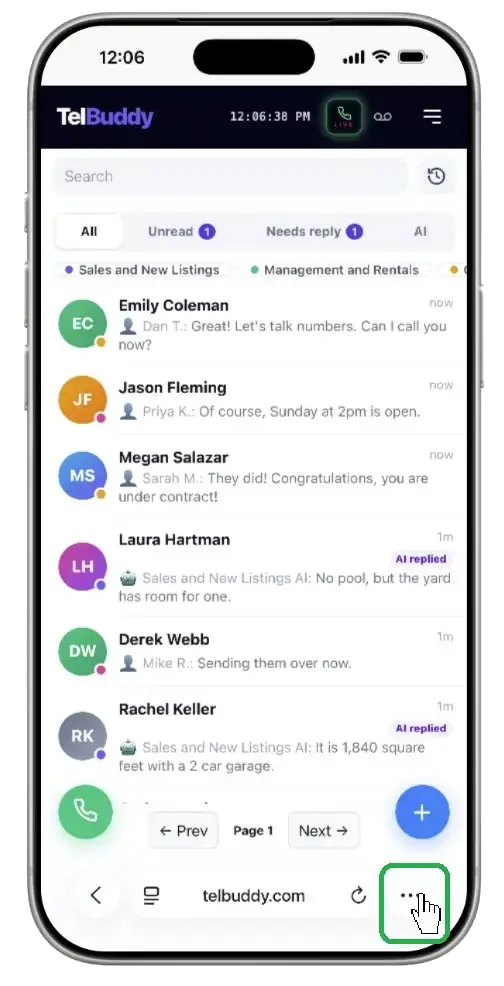
Click on the 3 dots to bring up the menu
Click the menu button at the bottom right of the screen.
-
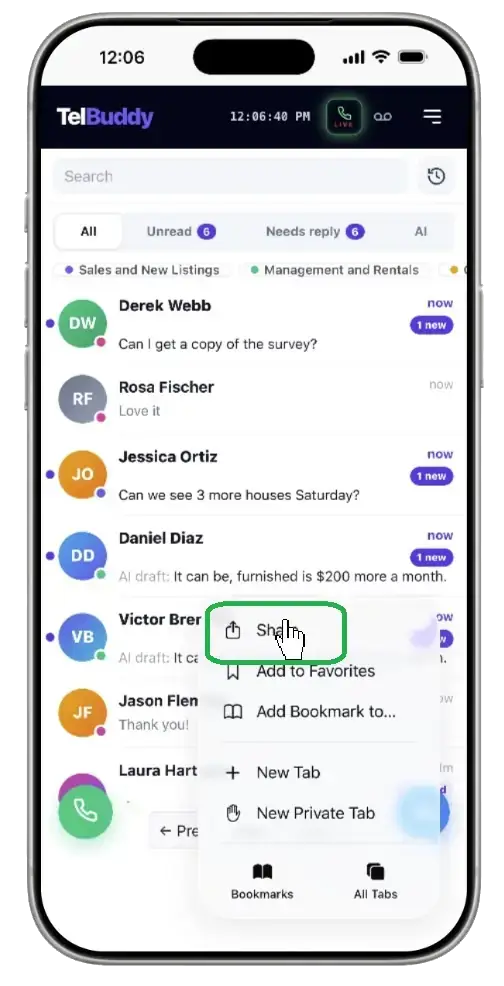
Tap Share
The square with an arrow pointing up, in the toolbar. Depending on your iOS version it is at the bottom of the screen or in the address bar.
-
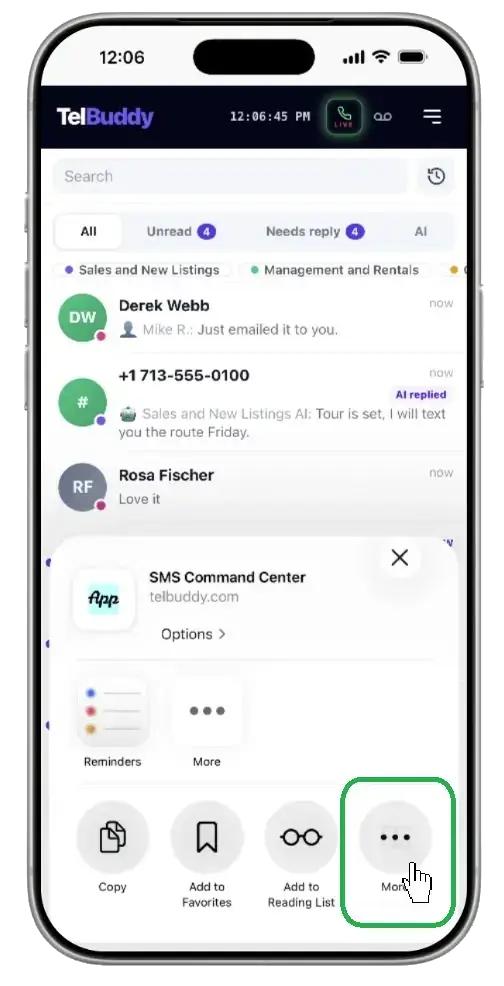
Tap More
The square with an arrow pointing up, in the toolbar. Depending on your iOS version it is at the bottom of the screen or in the address bar.
-
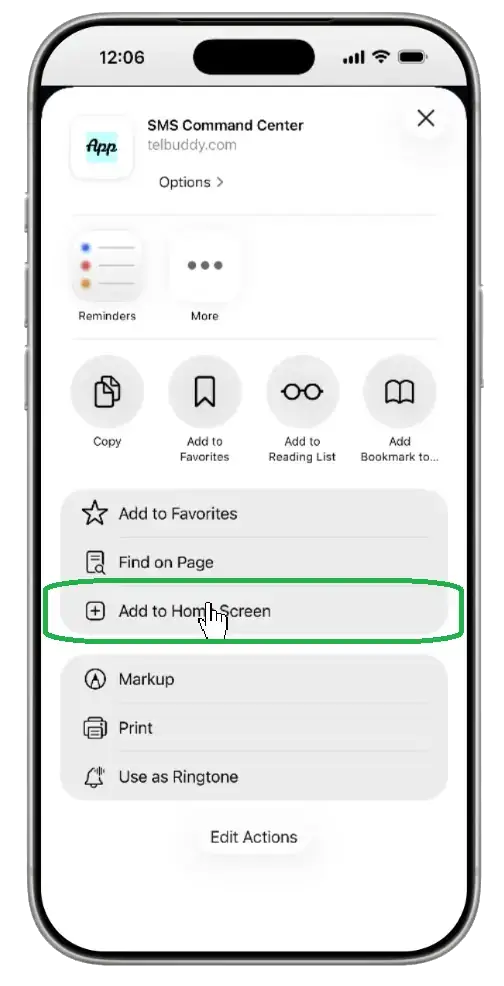
Tap Add to Home Screen
Scroll down the share sheet if you do not see it immediately, it sits below the row of apps. You can edit the name here if you want something shorter.
-
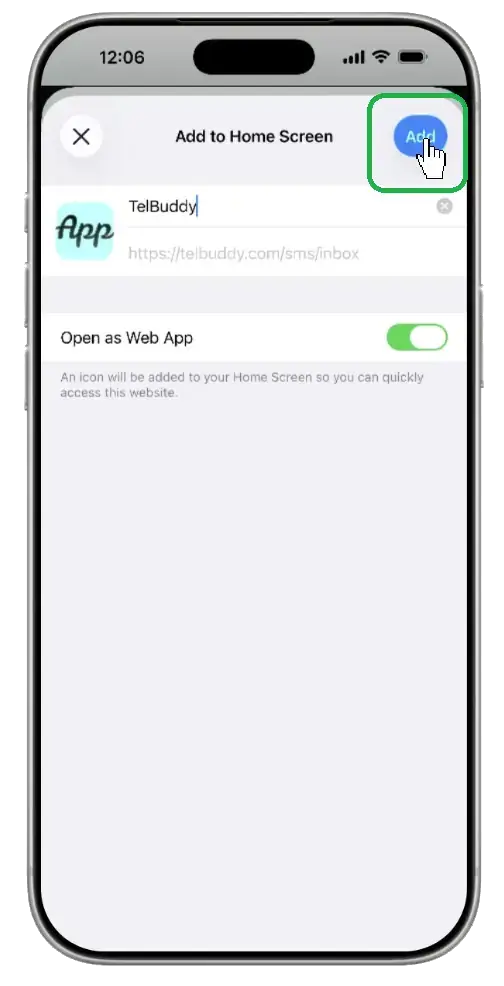
Tap Add
The icon appears on your Home Screen. Tap it and TelBuddy opens full-screen, straight into your inbox.
-
Allow notifications when asked
Open it from the Home Screen icon and accept the notification prompt when it appears. This is the step that turns on push for incoming messages, and it only works from the installed version.
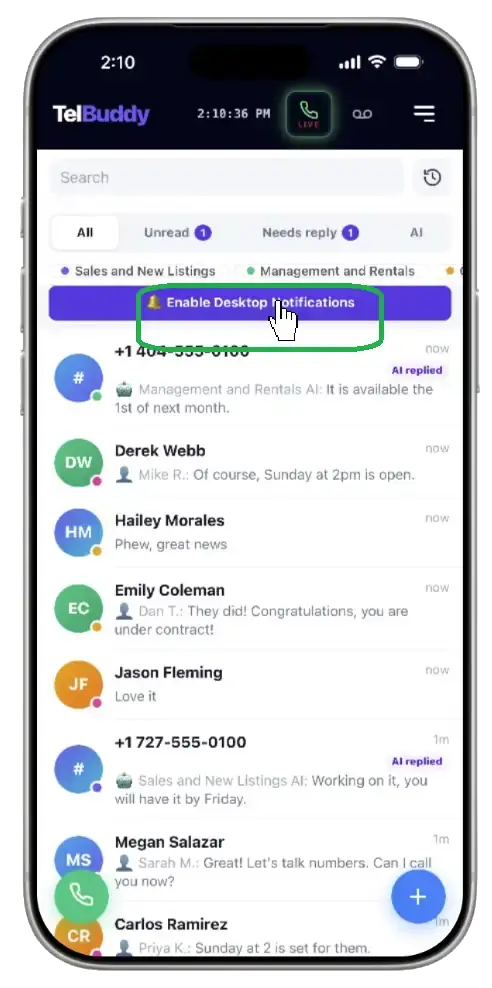
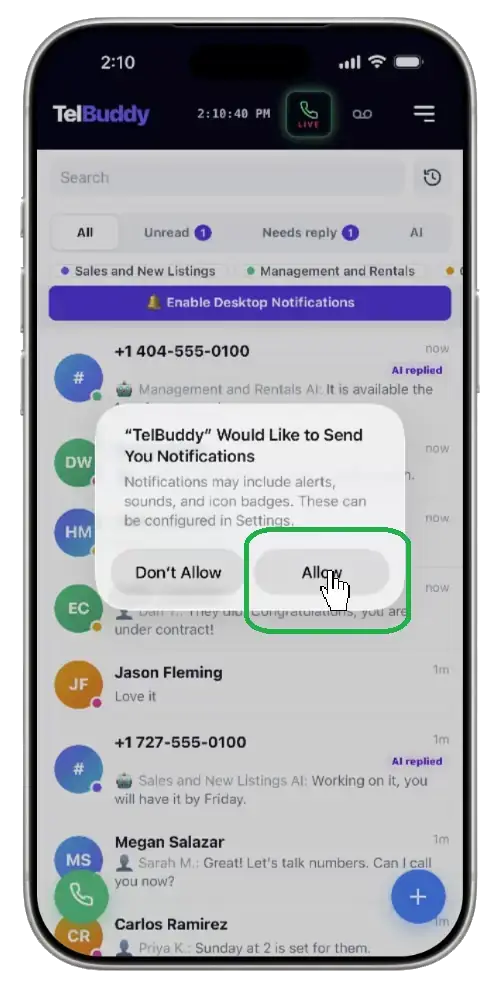
If you add TelBuddy from the public site rather than from your signed-in inbox, you get a plain bookmark: the wrong icon, a generic name, and a shortcut that opens the homepage. Delete it and add again from the inbox.
Turning on notifications
This is the part most worth doing, and the part most people skip.
When you open the Home Screen version, TelBuddy asks permission to send notifications. Accept, and you get a push notification when a new message arrives, the same way any messaging app on your phone behaves.
Two things to know:
- iPhone requires the Home Screen install. Apple does not allow web push in a normal Safari tab. The installed version is the only route.
- If you dismissed the prompt, you can enable notifications for TelBuddy in Settings → Notifications on your iPhone, where it appears alongside your other apps.
For a team sharing an inbox, this is what turns TelBuddy from something people remember to check into something that reaches them. Worth walking each teammate through once.
What you get, and what you do not
What genuinely changes:
- One tap to open. No Safari, no typing, no hunting through bookmarks.
- Full screen. No address bar, no tab strip. More of the screen is the inbox.
- A real app icon with the TelBuddy name, in your Home Screen and app switcher.
- Push notifications, as above.
- You stay signed in between launches, so it opens ready to use.
What does not change:
- It needs a connection. There is no offline mode and no cached messages. Without signal it will not load, exactly like the browser version.
- It is still the web app. Same interface, same features, same updates. Nothing to update manually, since it always loads the current version.
Android and other devices
The same approach works on Android through Chrome, which offers Add to Home screen or Install app in its menu, and produces the same full-screen launch.
On a desktop or laptop, a browser bookmark or a pinned tab does the equivalent job. There is nothing to install.
Troubleshooting
I do not see Add to Home Screen. You are not in Safari. Other iOS browsers do not offer it in a form that produces a full-screen app. Open the page in Safari and try again.
It opens with the Safari address bar showing. It was added from a page that is not part of the app, usually the marketing site. Delete the icon and add it again from your signed-in inbox.
The icon has the wrong name or picture. Same cause. Re-add from the inbox.
I am not getting notifications. Check three things: that you opened it from the Home Screen icon rather than Safari, that you accepted the permission prompt, and that TelBuddy is enabled under Settings → Notifications on your iPhone.
It will not load with no signal. Expected. There is no offline mode.
It logged me out. Clearing Safari's website data clears the installed version's session too, since they share storage. Sign in again.